Using GCP Workload Identity Federation in Slurm Jobs on SUNK
How to use GCP Workload Identity Federation from Slurm jobs on SUNK, including projected OIDC tokens, pyxis/enroot containers, and private Artifact Registry pulls without static service account keys.
Introduction
Most teams running Slurm workloads on a SUNK (CoreWeave Slurm on Kubernetes) cluster eventually need those jobs to talk to a cloud provider. That might be reading training data out of a Google Cloud Storage bucket, writing checkpoints back to GCS, or pulling private container images from Google Artifact Registry.
The traditional answer is to copy a service account JSON key onto the cluster. That works, but it brings every well-known problem with static credentials: keys leak, rotate poorly, and any compromise of a compute node compromises the cloud identity.
The better answer on CoreWeave is OIDC Workload Identity Federation (WIF). The CKS cluster acts as its own OIDC identity provider, GCP is configured to trust it, and workloads receive short-lived projected tokens that they exchange for GCP credentials on demand. CoreWeave already documents this pattern for ordinary CKS pods accessing Google Cloud Storage.
What this post adds is the Slurm-specific version of the same idea:
how to get a WIF token into Slurm jobs running under SUNK, including
jobs that run inside pyxis/enroot containers, and how to use that
token to pull private images directly from GCP Artifact Registry with
no per-job credential setup and no background credential-refresh
infrastructure.
This post is not about user authentication. A different post,
Federated Authentication to CoreWeave Kubernetes with an External OIDC
Provider, covers using OIDC to authenticate human users with
kubectl. That flow authenticates people to the Kubernetes API. The
flow in this post authenticates workloads from CKS to Google Cloud.
What we are building
The final setup has two independent pieces:
- Token projection. A small change to the SUNK Helm values that adds
a projected
serviceAccountTokenvolume to every compute pod, plus an enroot fstab fragment so the token is also visible inside pyxis containers. From then on, every Slurm job, bare or containerized, sees a fresh OIDC JWT at/var/run/secrets/tokens/token. - Artifact Registry credentials minted on demand. A ConfigMap that
ships a short shell script plus a netrc-format
.credentialsfile that references the script via shell command substitution. Enroot invokes the script at image-pull time, the script performs the WIF exchange against the projected token, and prints a fresh GCP access token. No CronJob, no Kubernetes Secret, no stale credentials.
The user experience at the end is:
1
2
3
4
5
6
7
8
# Use the WIF token from inside a job (bare or containerized)
srun -N1 --container-image=my-image \
  bash -c 'TOKEN=$(cat /var/run/secrets/tokens/token); ...'

# Pull a private image from GCP Artifact Registry, transparently
srun -N1 \
  --container-image=us-central1-docker.pkg.dev/my-project/my-repo/my-image:latest \
  my-command
Where this fits in CoreWeave’s identity flows
CoreWeave supports several identity-related flows that use similar language but solve different problems:
- Managed authentication uses CoreWeave-managed user identities to access the Kubernetes API.
- Unmanaged authentication lets you use Kubernetes-native authentication mechanisms, including OIDC tokens, against a dedicated unmanaged API endpoint.
- OIDC Workload Identity lets workloads running inside CKS authenticate to external services such as Google Cloud, AWS, or SaaS APIs.
This tutorial is about the third item, workload identity, applied inside Slurm jobs running on SUNK. The CKS-to-GCP setup itself is already documented at OIDC Workload Identity Federation with GCP; the SUNK-specific portions are what this post focuses on.
Prerequisites
You need:
- A SUNK cluster running on CoreWeave CKS. See Create a SUNK cluster if you do not yet have one.
- A Google Cloud project where you can create IAM resources. For the Artifact Registry section, billing must be enabled on the project.
- The
gcloudCLI installed and authenticated, pluskubectlconfigured against your CKS cluster. - A gitops workflow for your SUNK deployment (this post assumes ArgoCD). The K8s-side changes are Helm values plus a small Kustomize app, both designed to land via pull request.
Placeholders used in this post
Substitute these placeholders consistently with your own values:
| Placeholder | Meaning | Example |
|---|---|---|
<CLUSTER> |
CKS cluster name | prod-cluster-a |
<KUBECONFIG> |
Path to your kubeconfig | ~/.kube/config |
<SLURM_NAMESPACE> |
Namespace where SUNK is deployed | tenant-slurm |
<COMPUTE_POD> |
A Slurm compute pod name | slurm-rtxp6000-8x-XXX-XXX |
<CLUSTER_OIDC_ISSUER> |
CKS cluster OIDC issuer URL | https://oidc.cks.coreweave.com/id/<uuid> |
<GCP_PROJECT_ID> |
GCP project ID | my-gcp-project |
<GCP_PROJECT_NUMBER> |
GCP project number | 123456789012 |
<WIF_POOL> |
WIF pool name | cw-cks-pool |
<WIF_PROVIDER> |
WIF OIDC provider name | cw-cks-provider |
<GCP_SA> |
GCP service account name | cw-slurm-wif-sa |
<AR_REGION> |
Artifact Registry region | us-central1 |
<AR_REPO> |
Artifact Registry repository name | cw-slurm-images |
<GITOPS_REPO_URL> |
Gitops repo SSH URL | git@github.com:<org>/<repo>.git |
<BRANCH> |
Gitops branch to track | main |
Verify cluster baseline
Before changing anything, confirm the starting state on a compute pod. Your compute pods will usually be in the namespace “tenant-slurm” and named according to the instance type used, like b300 or rtxp6000.
1
2
3
4
5
6
7
8
9
10
11
12
13
14
15
export KUBECONFIG=<KUBECONFIG>

# automountServiceAccountToken should be false on compute pods
kubectl get pod <COMPUTE_POD> -n <SLURM_NAMESPACE> \
  -o jsonpath='{.spec.automountServiceAccountToken}'
# -> false

# Compute pods use the default ServiceAccount
kubectl get pod <COMPUTE_POD> -n <SLURM_NAMESPACE> \
  -o jsonpath='{.spec.serviceAccountName}'
# -> default

# Discover the cluster OIDC issuer URL
kubectl get --raw /.well-known/openid-configuration | jq -r .issuer
# -> https://oidc.cks.coreweave.com/id/<uuid>
Record the issuer URL. You will use it as <CLUSTER_OIDC_ISSUER> in the
GCP setup.
A quick sanity check that bare and pyxis jobs both work end-to-end. Access your Slurm login pod either via SSH or kubectl exec:
1
2
3
4
5
kubectl exec -n <SLURM_NAMESPACE> slurm-login-0 -c sshd -- \
  srun -N1 hostname

kubectl exec -n <SLURM_NAMESPACE> slurm-login-0 -c sshd -- \
  srun -N1 --container-image=ubuntu:22.04 cat /etc/os-release
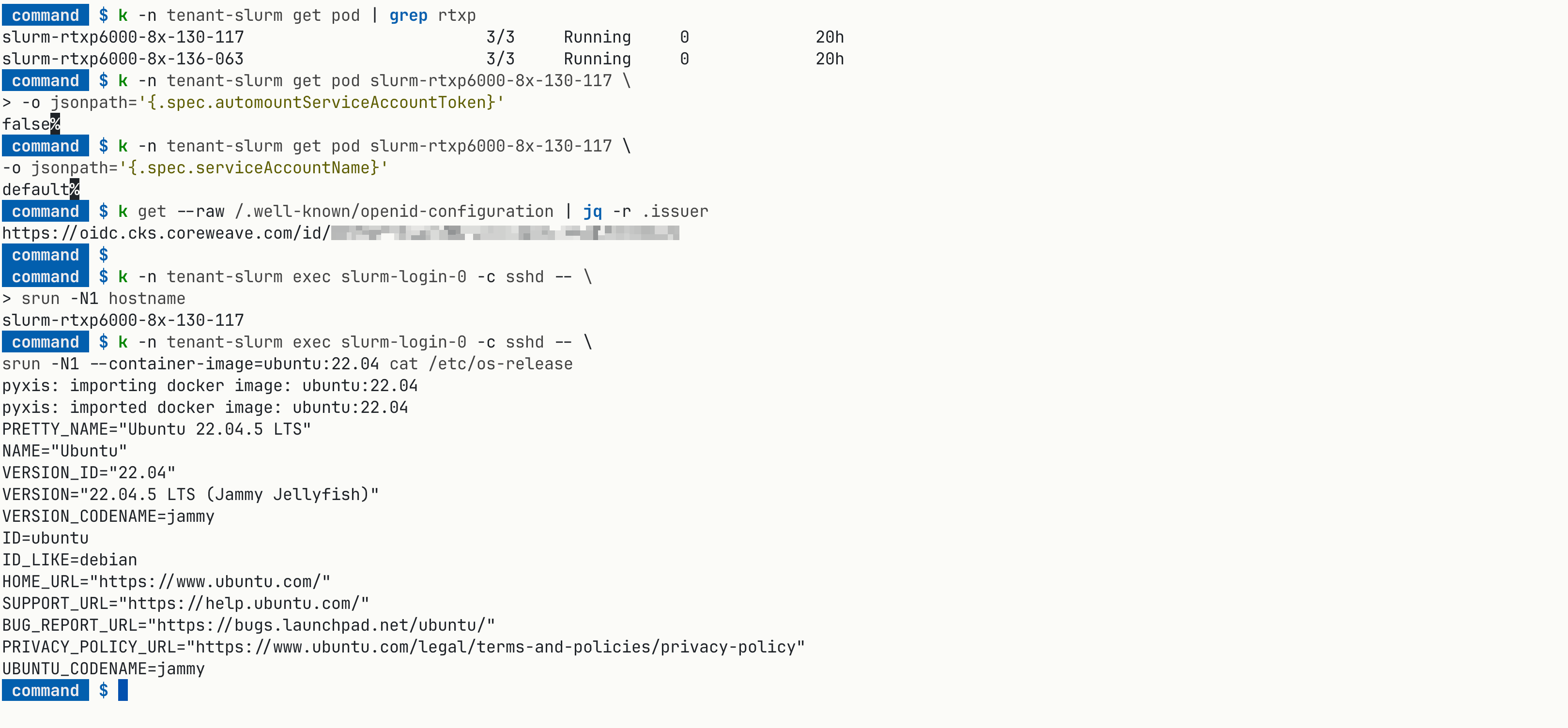 Sanity-checking that ordinary Slurm jobs and pyxis/enroot container jobs both run cleanly.
Step 1: Authenticate to GCP and enable the required APIs
1
2
3
4
5
6
7
gcloud auth login
gcloud config set project <GCP_PROJECT_ID>

gcloud services enable \
  iam.googleapis.com \
  iamcredentials.googleapis.com \
  sts.googleapis.com
If you have done the CKS-to-GCP workload identity setup before, you can reuse the existing WIF pool and provider. Otherwise, continue with the next two steps to create them.
Step 2: Create the WIF pool and OIDC provider
Create the pool:
1
2
3
4
gcloud iam workload-identity-pools create <WIF_POOL> \
  --location=global \
  --display-name="CKS OIDC Pool" \
  --description="WIF pool for CKS cluster OIDC tokens"
Create the OIDC provider that trusts your CKS cluster’s issuer:
1
2
3
4
5
6
gcloud iam workload-identity-pools providers create-oidc <WIF_PROVIDER> \
  --location=global \
  --workload-identity-pool=<WIF_POOL> \
  --issuer-uri="<CLUSTER_OIDC_ISSUER>" \
  --attribute-mapping="google.subject=assertion.sub" \
  --allowed-audiences="https://iam.googleapis.com/projects/<GCP_PROJECT_NUMBER>/locations/global/workloadIdentityPools/<WIF_POOL>/providers/<WIF_PROVIDER>"
The --allowed-audiences value is the exact string you will later use
as the audience field in the projected Kubernetes token. The two must
match exactly. A mismatch is the most common cause of “STS rejected my
token” errors.
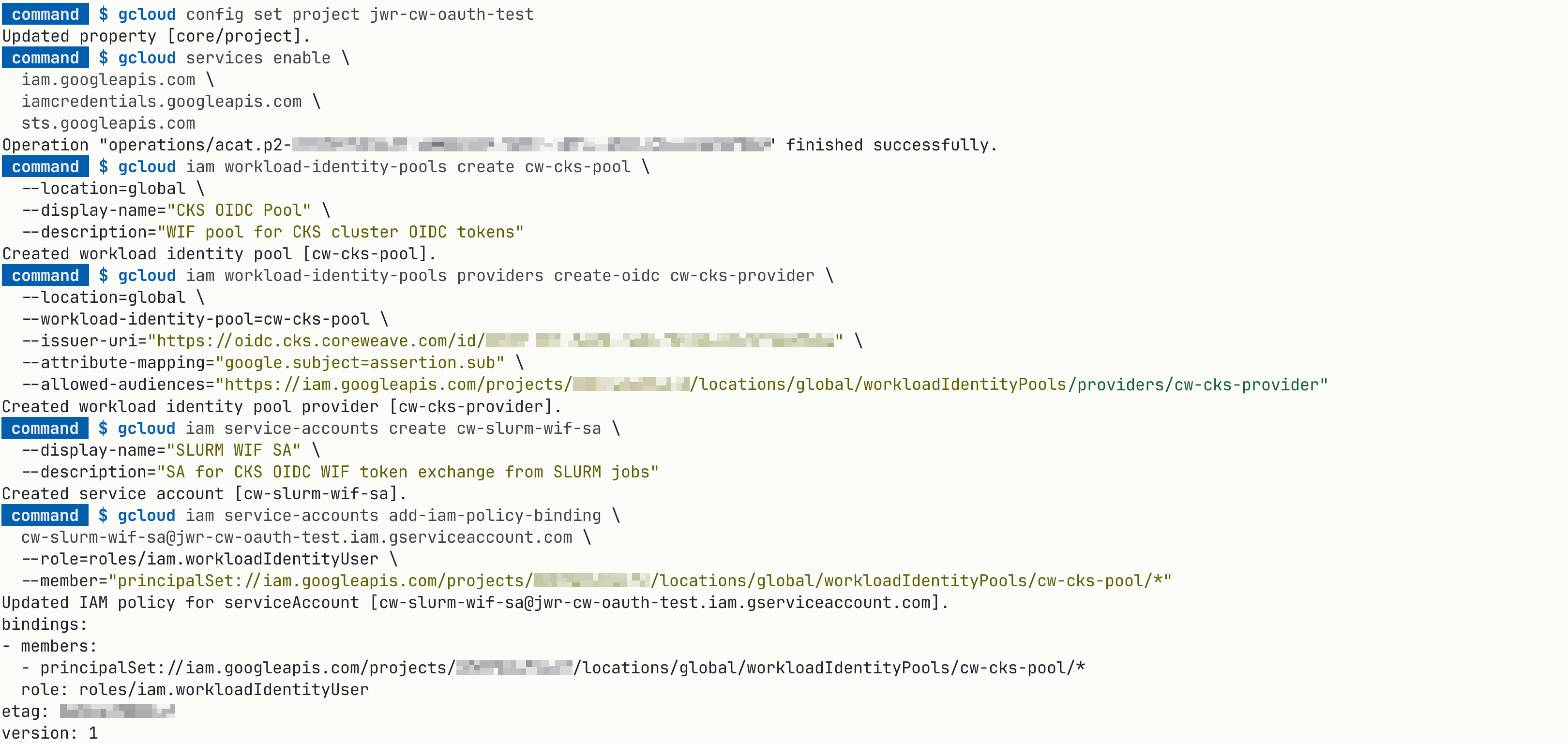 The GCP Workload Identity Federation pool and OIDC provider that trusts the CKS issuer.
Step 3: Create a GCP service account and grant impersonation
Create the service account that Slurm jobs will impersonate:
1
2
3
gcloud iam service-accounts create <GCP_SA> \
  --display-name="Slurm WIF SA" \
  --description="SA for CKS OIDC WIF token exchange from Slurm jobs"
Grant the WIF pool the right to impersonate it:
1
2
3
4
gcloud iam service-accounts add-iam-policy-binding \
  <GCP_SA>@<GCP_PROJECT_ID>.iam.gserviceaccount.com \
  --role=roles/iam.workloadIdentityUser \
  --member="principalSet://iam.googleapis.com/projects/<GCP_PROJECT_NUMBER>/locations/global/workloadIdentityPools/<WIF_POOL>/*"
The wildcard * allows any subject in the pool to impersonate the SA,
which is fine for first-time testing. For production, scope this
binding to a specific subject (for example,
principal://.../subject/system:serviceaccount:<SLURM_NAMESPACE>:default)
so that an unrelated workload in the same cluster cannot impersonate
the SA.
Grant the service account whatever GCP permissions your Slurm jobs need.
For a GCS-only use case, that might be roles/storage.objectViewer on
a specific bucket.
Step 4: Project the WIF token onto SUNK compute pods
In your Slurm Helm values.yaml, add the following entries under
compute:. Keep your existing volumeMounts and volumes; these are
additions:
1
2
3
4
5
6
7
8
9
10
11
12
13
14
15
16
17
18
19
20
21
22
23
compute:
  volumeMounts:
    # ... existing mounts (slurm-home, slurm-data, etc.) ...
    - mountPath: /var/run/secrets/tokens
      name: gcp-wif-token
      readOnly: true
    - mountPath: /etc/enroot/mounts.d/50-wif-token.fstab
      name: enroot-wif-fstab
      subPath: 50-wif-token.fstab
      readOnly: true
  volumes:
    # ... existing volumes ...
    - name: gcp-wif-token
      projected:
        sources:
          - serviceAccountToken:
              audience: "https://iam.googleapis.com/projects/<GCP_PROJECT_NUMBER>/locations/global/workloadIdentityPools/<WIF_POOL>/providers/<WIF_PROVIDER>"
              expirationSeconds: 3600
              path: token
    - name: enroot-wif-fstab
      configMap:
        name: enroot-wif-fstab
        defaultMode: 0444
This gives every compute pod two things:
/var/run/secrets/tokens/token, a JWT minted by the kubelet, audience-scoped to your GCP WIF provider. Kubelet refreshes the token well before its 1-hour TTL./etc/enroot/mounts.d/50-wif-token.fstab, a single-line fstab fragment that tells enroot to bind-mount the token path into every pyxis container at job start. The ConfigMap behind it is created in the next step.
Applying this will trigger a rolling restart of compute pods, but don’t sync this yet as we also need the values reference enroot-wif-fstab created in Step 5 below. PR and sync the changes from steps 4 and 5 together.
Why the fstab fragment is necessary
By default, an enroot container does not inherit volume mounts from its
host pod. Without the fstab fragment, the projected token will be
visible to bare srun jobs but invisible to srun --container-image=...
jobs. The fstab fragment fixes this cluster-wide so that no user needs
to pass --container-mounts on each job.
The alternative is to add
--container-mounts=/var/run/secrets/tokens:/var/run/secrets/tokens:ro
to every job. That works, but it pushes credential plumbing into every
user’s job script.
Step 5: Create the enroot fstab ConfigMap
Add a small Kustomize app to your gitops repo:
1
2
3
4
slurm-enroot/
  mounts.d/
    kustomization.yaml
    50-wif-token.fstab
Important: all of these files must end with a trailing newline.
slurm-enroot/mounts.d/50-wif-token.fstab:
1
/var/run/secrets/tokens  /var/run/secrets/tokens  none  x-create=dir,bind,ro,nosuid,nodev,noexec,private  0  -1
slurm-enroot/mounts.d/kustomization.yaml:
1
2
3
4
5
6
7
8
9
10
apiVersion: kustomize.config.k8s.io/v1beta1
kind: Kustomization
namespace: <SLURM_NAMESPACE>

configMapGenerator:
  - name: enroot-wif-fstab
    files:
      - 50-wif-token.fstab
generatorOptions:
  disableNameSuffixHash: true
disableNameSuffixHash: true matters. The SUNK values reference the
ConfigMap by exact name (enroot-wif-fstab), so Kustomize must not
append a hash suffix.
Register the app in your ArgoCD Apps.yaml:
1
2
3
4
5
6
7
8
9
10
slurm-enroot-mounts:
  enabled: true
  namespace: <SLURM_NAMESPACE>
  clusters:
    - name: <CLUSTER>
  source:
    repoURL: <GITOPS_REPO_URL>
    path: slurm-enroot/mounts.d
    targetRevision: <BRANCH>
    kustomize: {}
Use the SSH repoURL form that matches the rest of your gitops config.
PR, merge and sync via Argo CD to apply the changes.
Step 6: Verify the token is visible from Slurm jobs
After ArgoCD syncs and the compute pods have rolled, from a shell on the login pod:
1
2
3
4
5
6
7
8
9
10
11
12
13
14
15
# Bare srun can read the token
srun -N1 cat /var/run/secrets/tokens/token
# -> AABBCC.DDEEFF.GGHHII   (valid JWT)

# Decode the claims to confirm audience, issuer, and subject
srun -N1 cat /var/run/secrets/tokens/token \
  | cut -d. -f2 | tr '_-' '/+' \
  | base64 -d 2>/dev/null | python3 -m json.tool
# -> aud: ["https://iam.googleapis.com/projects/.../<WIF_PROVIDER>"]
#    iss: "<CLUSTER_OIDC_ISSUER>"
#    sub: "system:serviceaccount:<SLURM_NAMESPACE>:default"

# Pyxis container can also read the token, without --container-mounts
srun -N1 --container-image=ubuntu:22.04 cat /var/run/secrets/tokens/token
# -> AABBCC.DDEEFF.GGHHII
The last command is the important one. If it returns
No such file or directory, the enroot fstab ConfigMap is either not
mounted on the compute pod or contains the wrong path.
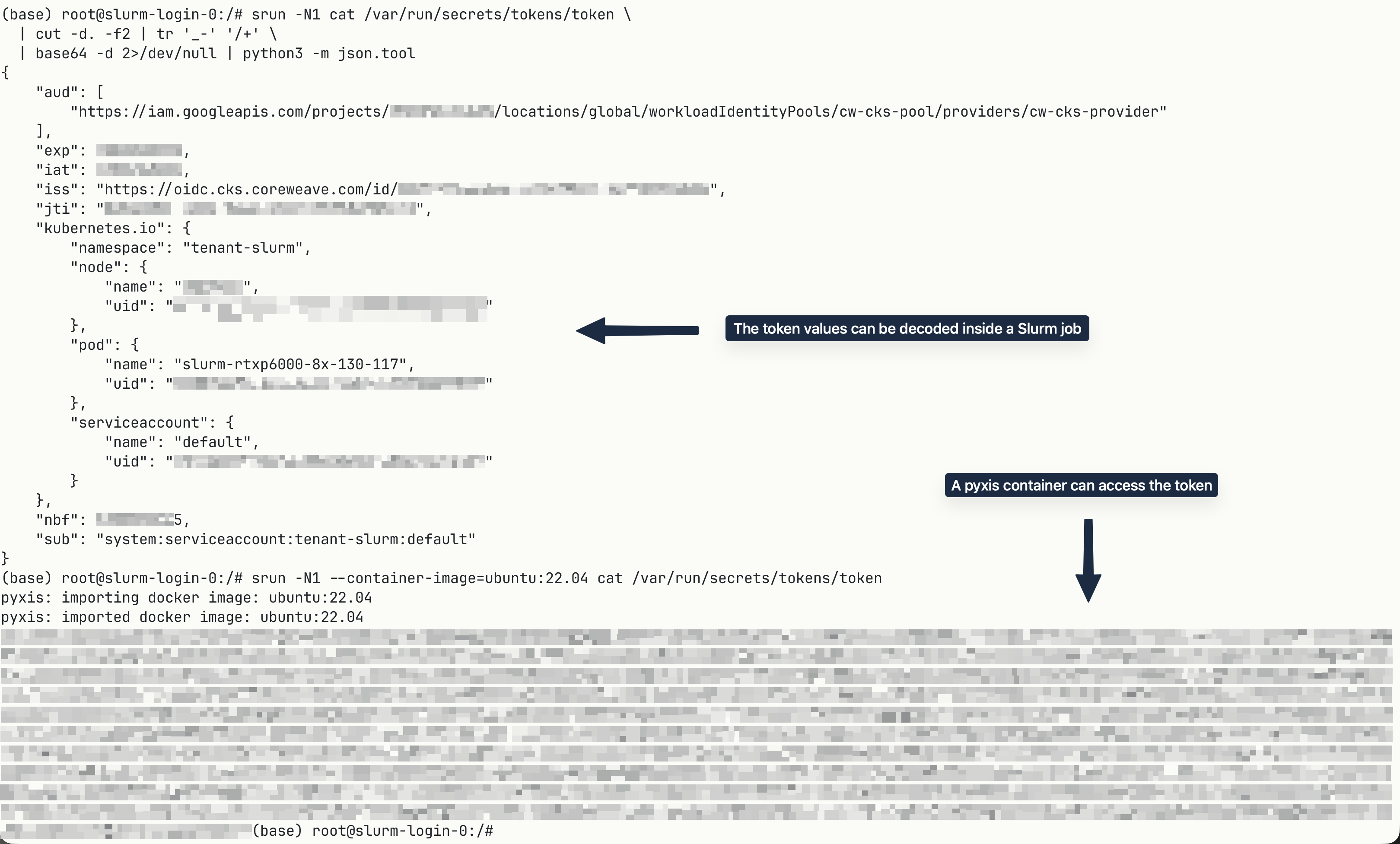 Reading the projected JWT from inside a pyxis container and decoding its Kubernetes claims.
Step 7: Use the token to call a GCP API from a Slurm job
With the token projected, calling a GCP API from inside a job is the standard three-step WIF exchange: read the K8s JWT, exchange it via STS for a federated token, then impersonate the GCP service account for an access token.
From inside a Slurm job:
1
2
3
4
5
6
7
8
9
10
11
12
13
14
15
16
17
18
19
20
21
22
23
24
25
26
# Step 1: Read the projected K8s JWT
K8S_TOKEN=$(cat /var/run/secrets/tokens/token)

# Step 2: Exchange the K8s JWT for a GCP federated token via STS
FED_TOKEN=$(curl -sS -X POST "https://sts.googleapis.com/v1/token" \
  -H "Content-Type: application/json" \
  -d "{
    \"grant_type\": \"urn:ietf:params:oauth:grant-type:token-exchange\",
    \"audience\": \"//iam.googleapis.com/projects/<GCP_PROJECT_NUMBER>/locations/global/workloadIdentityPools/<WIF_POOL>/providers/<WIF_PROVIDER>\",
    \"scope\": \"https://www.googleapis.com/auth/cloud-platform\",
    \"requested_token_type\": \"urn:ietf:params:oauth:token-type:access_token\",
    \"subject_token_type\": \"urn:ietf:params:oauth:token-type:jwt\",
    \"subject_token\": \"$K8S_TOKEN\"
  }" | python3 -c "import sys,json; print(json.load(sys.stdin)['access_token'])")

# Step 3: Impersonate the GCP service account to obtain an access token
SA_TOKEN=$(curl -sS -X POST \
  "https://iamcredentials.googleapis.com/v1/projects/-/serviceAccounts/<GCP_SA>@<GCP_PROJECT_ID>.iam.gserviceaccount.com:generateAccessToken" \
  -H "Authorization: Bearer $FED_TOKEN" \
  -H "Content-Type: application/json" \
  -d '{"scope":["https://www.googleapis.com/auth/cloud-platform"],"lifetime":"3600s"}' \
  | python3 -c "import sys,json; print(json.load(sys.stdin)['accessToken'])")

# Use it, e.g. to list objects in a GCS bucket
curl -sS -H "Authorization: Bearer $SA_TOKEN" \
  "https://storage.googleapis.com/storage/v1/b/<MY_BUCKET>/o"
In a real workload you would not usually write the exchange chain by hand. We do it here for the sake of simplicity in the tutorial. The Google Cloud client libraries handle it automatically when pointed at a credentials configuration file that references the projected token path. See Google’s Authenticate with client libraries documentation for the per-language setup.
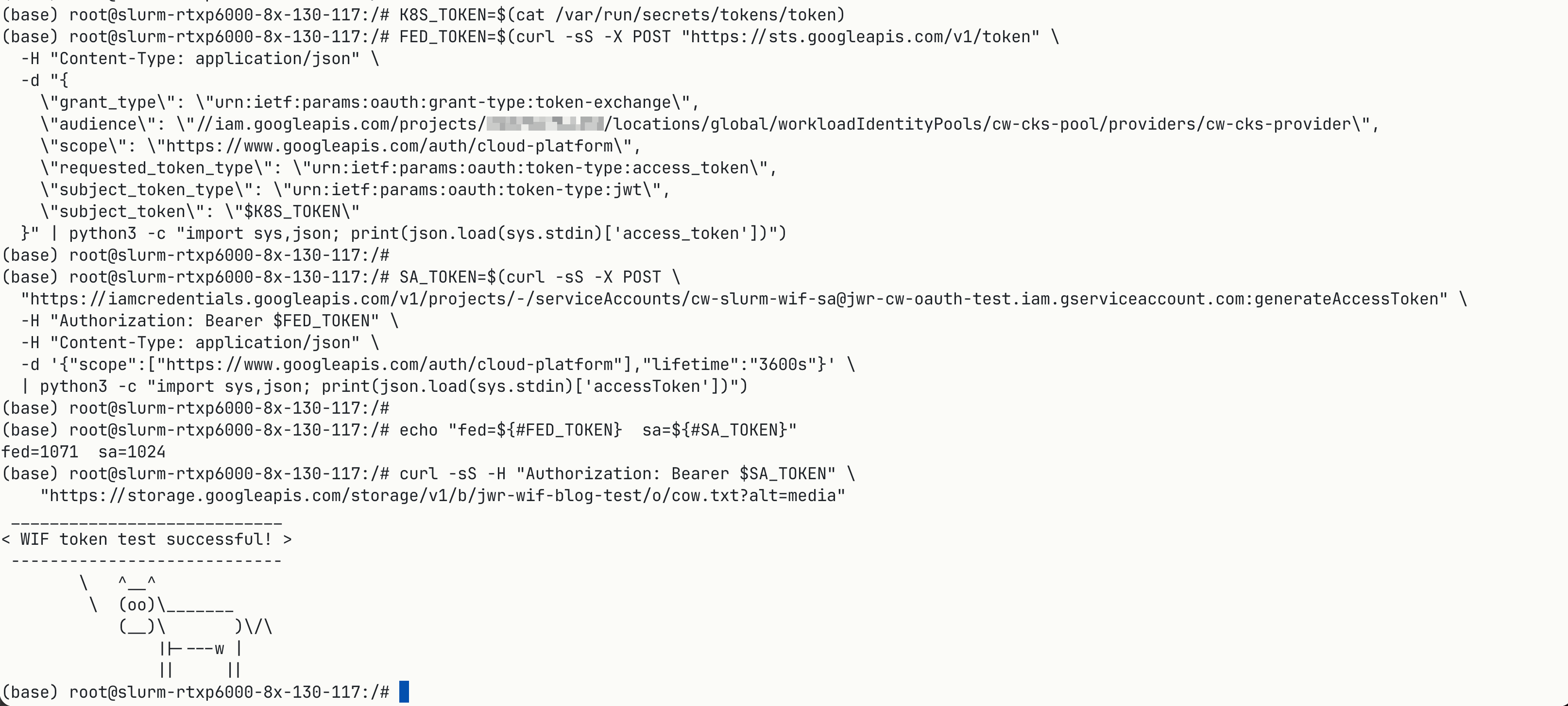 Listing a GCS bucket from an
 srun job after exchanging the projected token for GCP credentials.
At this point, the GCP-API-access half of the setup is complete. If you do not need to pull images from Artifact Registry, you can stop here.
Step 8: Create an Artifact Registry repository (optional)
The remaining steps cover pulling private container images from GCP
Artifact Registry directly via srun --container-image=.... Skip this
section if you only needed GCP API access.
Enable the Artifact Registry API and create a repository:
1
2
3
4
5
6
gcloud services enable artifactregistry.googleapis.com

gcloud artifacts repositories create <AR_REPO> \
  --repository-format=docker \
  --location=<AR_REGION> \
  --description="Repo for Slurm enroot pulls"
Push a test image:
1
2
3
4
5
6
gcloud auth configure-docker <AR_REGION>-docker.pkg.dev
docker pull --platform linux/amd64 alpine:3.20
docker tag alpine:3.20 \
  <AR_REGION>-docker.pkg.dev/<GCP_PROJECT_ID>/<AR_REPO>/alpine:amd64
docker push \
  <AR_REGION>-docker.pkg.dev/<GCP_PROJECT_ID>/<AR_REPO>/alpine:amd64
If you are building on Apple Silicon, the --platform linux/amd64 flag
is required. Without it, the image will be aarch64 and will fail on
x86_64 compute nodes with Exec format error.
Grant the WIF service account reader access on the repository:
1
2
3
4
gcloud artifacts repositories add-iam-policy-binding <AR_REPO> \
  --location=<AR_REGION> \
  --member="serviceAccount:<GCP_SA>@<GCP_PROJECT_ID>.iam.gserviceaccount.com" \
  --role="roles/artifactregistry.reader"
Step 9: Understand the enroot credentials path
Before wiring credentials in, it is worth understanding the constraints that drive the design.
Enroot reads registry credentials from a netrc-format .credentials
file. Two paths and two key behaviors matter:
- The default path enroot reads is
$HOME/.config/enroot/.credentials, which on compute pods is/root/.config/enroot/.credentials. You cannot volume-mount a ConfigMap or Secret into that exact path. Doing so conflicts with enroot’s own/roothandling and breaks all container jobs withenroot-mount: failed to mount: /root. /etc/enroot/.credentialsis silently ignored by enroot, despite looking like a sensible default.- The path enroot uses can be overridden with the
ENROOT_CONFIG_PATHsetting, which can live in anenroot.conf.ddrop-in file. - The
.credentialsfile supports shell command substitution. Lines of the formpassword $(some-command)cause enroot to executesome-commandat image-pull time and use its standard output as the password.
The shell-substitution behavior is the key to a simple design. Because
the projected K8s token (Step 4) is already on disk and the WIF
exchange in Step 7 takes a few hundred milliseconds, you can have
enroot mint a fresh GCP access token on every pull by pointing the
.credentials file at a small helper script. No CronJob, no
Kubernetes Secret, no rotation logic.
Step 10: Add the credential script and config to the Kustomize app
Extend the slurm-enroot Kustomize app from Step 5 with three more
files:
1
2
3
4
5
6
7
slurm-enroot/
  mounts.d/
    kustomization.yaml
    50-wif-token.fstab
    30-gar-config.conf
    .credentials
    get-gar-token.sh
Important: all of these files must end with a trailing newline.
enroot’s config parser and netrc parser both silently skip an
unterminated final line. If you get “Authenticating with user: <anonymous>” when pulling images from a private repo, the automated credential pull has probably failed due to a lack of new line at the end.
slurm-enroot/mounts.d/30-gar-config.conf — tells enroot where to
look for credentials. Drops in at /etc/enroot/enroot.conf.d/:
1
2
ENROOT_CONFIG_PATH /var/run/secrets/gar
slurm-enroot/mounts.d/.credentials — a static netrc with a
command-substitution password field. Enroot evaluates the $(...) at
image-pull time:
1
2
machine <AR_REGION>-docker.pkg.dev login oauth2accesstoken password $(/var/run/secrets/gar/get-gar-token.sh)
slurm-enroot/mounts.d/get-gar-token.sh — the script that performs
the WIF exchange and prints the GCP access token on stdout. It is the
same three-step chain from Step 7, just packaged for re-use:
1
2
3
4
5
6
7
8
9
10
11
12
13
14
15
16
17
18
19
20
21
22
23
24
25
26
27
28
29
30
31
32
33
34
#!/bin/sh
set -eu

WIF_AUDIENCE="//iam.googleapis.com/projects/<GCP_PROJECT_NUMBER>/locations/global/workloadIdentityPools/<WIF_POOL>/providers/<WIF_PROVIDER>"
GCP_SA_EMAIL="<GCP_SA>@<GCP_PROJECT_ID>.iam.gserviceaccount.com"
TOKEN_PATH="/var/run/secrets/tokens/token"

K8S_TOKEN=$(cat "$TOKEN_PATH")

# Step 1: STS exchange — K8s JWT -> federated token
FED_TOKEN=$(curl -fsS -X POST "https://sts.googleapis.com/v1/token" \
  -H "Content-Type: application/json" \
  -d "{
    \"grant_type\": \"urn:ietf:params:oauth:grant-type:token-exchange\",
    \"audience\": \"$WIF_AUDIENCE\",
    \"scope\": \"https://www.googleapis.com/auth/cloud-platform\",
    \"requested_token_type\": \"urn:ietf:params:oauth:token-type:access_token\",
    \"subject_token_type\": \"urn:ietf:params:oauth:token-type:jwt\",
    \"subject_token\": \"$K8S_TOKEN\"
  }" | sed -n 's/.*"access_token" *: *"\([^"]*\)".*/\1/p')

[ -n "$FED_TOKEN" ] || { echo "STS exchange returned no access_token" >&2; exit 1; }

# Step 2: SA impersonation -> GCP access token
SA_TOKEN=$(curl -fsS -X POST \
  "https://iamcredentials.googleapis.com/v1/projects/-/serviceAccounts/$GCP_SA_EMAIL:generateAccessToken" \
  -H "Authorization: Bearer $FED_TOKEN" \
  -H "Content-Type: application/json" \
  -d '{"scope":["https://www.googleapis.com/auth/cloud-platform"],"lifetime":"3600s"}' \
  | sed -n 's/.*"accessToken" *: *"\([^"]*\)".*/\1/p')

[ -n "$SA_TOKEN" ] || { echo "SA impersonation returned no accessToken" >&2; exit 1; }

printf '%s' "$SA_TOKEN"
Two practical notes about the script:
- It uses
sedrather thanjqorpythonto keep the runtime dependency surface minimal. The shipped SUNKslurmdimage already hassh,curl, andsed. Anything else would be a bet against the next image rebuild. - All diagnostics go to stderr; only the access token goes to stdout.
Enroot uses stdout as the password verbatim, so a stray
echowould corrupt the credential.
Update kustomization.yaml to put each file in the right ConfigMap:
1
2
3
4
5
6
7
8
9
10
11
12
13
14
15
16
17
apiVersion: kustomize.config.k8s.io/v1beta1
kind: Kustomization
namespace: <SLURM_NAMESPACE>

configMapGenerator:
  - name: enroot-wif-fstab
    files:
      - 50-wif-token.fstab
  - name: enroot-gar-conf
    files:
      - 30-gar-config.conf
  - name: enroot-gar-creds
    files:
      - .credentials
      - get-gar-token.sh
generatorOptions:
  disableNameSuffixHash: true
Three ConfigMaps, each with a single job:
| ConfigMap | Contents | Mounted at |
|---|---|---|
enroot-wif-fstab |
50-wif-token.fstab |
/etc/enroot/mounts.d/ (subPath) |
enroot-gar-conf |
30-gar-config.conf |
/etc/enroot/enroot.conf.d/ (subPath) |
enroot-gar-creds |
.credentials, get-gar-token.sh |
/var/run/secrets/gar/ (whole directory) |
The first two land under /etc/enroot and have to coexist with other
files in those directories, so they mount via subPath. The third
owns its directory and mounts as a whole, which makes the script and
the credentials file appear together at the path
ENROOT_CONFIG_PATH points to.
Step 11: Mount the credential ConfigMaps on compute pods
Extend the SUNK Helm values from Step 4 with two more volumes:
1
2
3
4
5
6
7
8
9
10
11
12
13
14
15
16
17
18
19
20
compute:
  volumeMounts:
    # ... existing mounts plus those from Step 4 ...
    - mountPath: /etc/enroot/enroot.conf.d/30-gar-config.conf
      name: enroot-gar-conf
      subPath: 30-gar-config.conf
      readOnly: true
    - mountPath: /var/run/secrets/gar
      name: enroot-gar-creds
      readOnly: true
  volumes:
    # ... existing volumes plus those from Step 4 ...
    - name: enroot-gar-conf
      configMap:
        name: enroot-gar-conf
        defaultMode: 0444
    - name: enroot-gar-creds
      configMap:
        name: enroot-gar-creds
        defaultMode: 0555
Two things to note:
defaultMode: 0555onenroot-gar-creds. The mode applies to every file in the ConfigMap, so.credentialsgets0555along with the script. Read+execute for everyone is fine here as neither file contains a secret, and enroot needs the script to be executable.- The
gar-credentialsmount is no longer a KubernetesSecret. It is aConfigMap. The credential material lives only in the access token that the script prints to stdout, in memory, for the lifetime of a single enroot pull. There is no on-disk credential at any point.
PR, merge and re-sync the ArgoCD app and let the compute pods roll and receive the updated settings.
subPath ConfigMap mounts do not live-update. The
enroot.conf.dandmounts.ddrop-ins above usesubPathbecause the target directories also contain SUNK-shipped files (aREADME, other enroot defaults) that must not be replaced. As a side effect, changes to theenroot-wif-fstaborenroot-gar-confConfigMaps are not picked up by running compute pods. Only pods started after the ConfigMap change will get the update. After re-syncing either of those ConfigMaps, restart Slurm compute pods.
Step 12: Test an end-to-end private image pull
From a shell on the login pod:
1
2
3
4
5
6
7
srun -N1 \
  --container-image=<AR_REGION>-docker.pkg.dev/<GCP_PROJECT_ID>/<AR_REPO>/alpine:amd64 \
  cat /etc/os-release
# -> pyxis: importing docker image: <AR_REGION>-docker.pkg.dev/...
# -> pyxis: imported docker image: <AR_REGION>-docker.pkg.dev/...
# -> NAME="Alpine Linux"
# -> VERSION_ID=3.20.10
No --container-mounts, no docker login, no JSON keys on disk. At
the moment enroot needs a credential, it reads
/var/run/secrets/gar/.credentials, sees the $(...) in the
password field, executes
/var/run/secrets/gar/get-gar-token.sh, captures the access token from
the script’s stdout, and authenticates to Artifact Registry with it.
If you want to confirm the script works in isolation before testing the full pull:
1
2
3
# From a shell on a compute pod (or via srun)
srun -N1 /var/run/secrets/gar/get-gar-token.sh | head -c 32
# -> ya29.c.b0AXv...
 Pulling and running a private Artifact Registry image directly through
 srun --container-image.
Notes and limitations
A few things are worth knowing before rolling this out broadly:
- All Slurm jobs share one GCP identity. Every job runs as
system:serviceaccount:<SLURM_NAMESPACE>:defaultat the Kubernetes layer and impersonates a single GCP service account. Per-Slurm-user GCP identities require a different attestation mechanism (for example, SPIFFE/SPIRE mapping Unix UIDs to distinct identities) and are out of scope for this post. - Scope the WIF binding for production. The
principalSet://.../*binding in Step 3 allows any subject in the pool to impersonate the service account. In production, bind to the specific subject (principal://.../subject/system:serviceaccount:<SLURM_NAMESPACE>:default) so that an unrelated workload in the same cluster cannot impersonate it. - Pyxis containers do not inherit host mounts by default. The
enroot fstab fragment is the cluster-wide fix. The per-job
alternative (
--container-mounts=...) works but is operationally noisier. - Enroot’s credentials path is constrained.
$HOME/.config/enroot/.credentialsis the only path enroot reads by default, but it cannot be volume-mounted in place without breaking enroot’s own/roothandling./etc/enroot/.credentialsis silently ignored. SettingENROOT_CONFIG_PATHto a neutral path via anenroot.conf.ddrop-in is the cleanest approach. - One STS exchange per pull. The script runs each time enroot needs the password — typically once per image pull, but in theory more if enroot retries. The exchange is two HTTPS round-trips and a few hundred milliseconds, so this is rarely material, but if you pull thousands of images per minute you may want to add a short on-disk cache to the script.
- Script dependencies. The script depends on
sh,curl, andsedbeing present in theslurmdhost context. The shipped SUNK image satisfies this; a custom image must too. If you replacesedwithjqorpython, keep that requirement in mind. - Artifact Registry requires billing. The IAM and STS APIs used in Steps 1 through 7 are free. Artifact Registry storage and egress are not.
References
CoreWeave documentation referenced in this post:
- SUNK overview
- Create a SUNK cluster
- Configure compute nodes
- Workload identity introduction
- OIDC Workload Identity Federation with GCP
- Enroot and AppArmor on SUNK
- SUNK custom images
External references: