Linux driver and configuration app for the Logitech G13
An unofficial Linux driver and GUI for the Logitech G13 Advanced Gameboard, with profiles, macros, RGB backlighting, LCD images and GIF animations.
Resurrecting an awesome device from the dead
The G13 gaming keyboard is one of my favorite devices, and with all the computer peripherals I’ve used over the last few decades, that’s saying something.
For those unfamiliar with it, the G13 is a fully programmable little keyboard made for custom key layouts for a variety of games. It has been a long-time friend and assistant both for gaming and as a second keyboard for work. One time I even mapped the entire left-hand side of my work laptop to the G13 and used it to get a more ergonomic work setup.
The build quality of this thing is excellent. It feels hefty and robust, with a big rubber handrest and nice, chunky keys. It also has a joystick and two “mouse” buttons. Everything can be customized and remapped to perform whatever keystrokes, key combinations or macros you could want. The LCD originally supported a variety of apps, including a clock and computer performance stats. The keys and LCD are backlit, with a configurable color and intensity for each gaming profile.
This is also the very same G13 that survived downing a full pint of beer. I took it apart and washed it back in 2016, and somehow it is still going nearly ten years later.
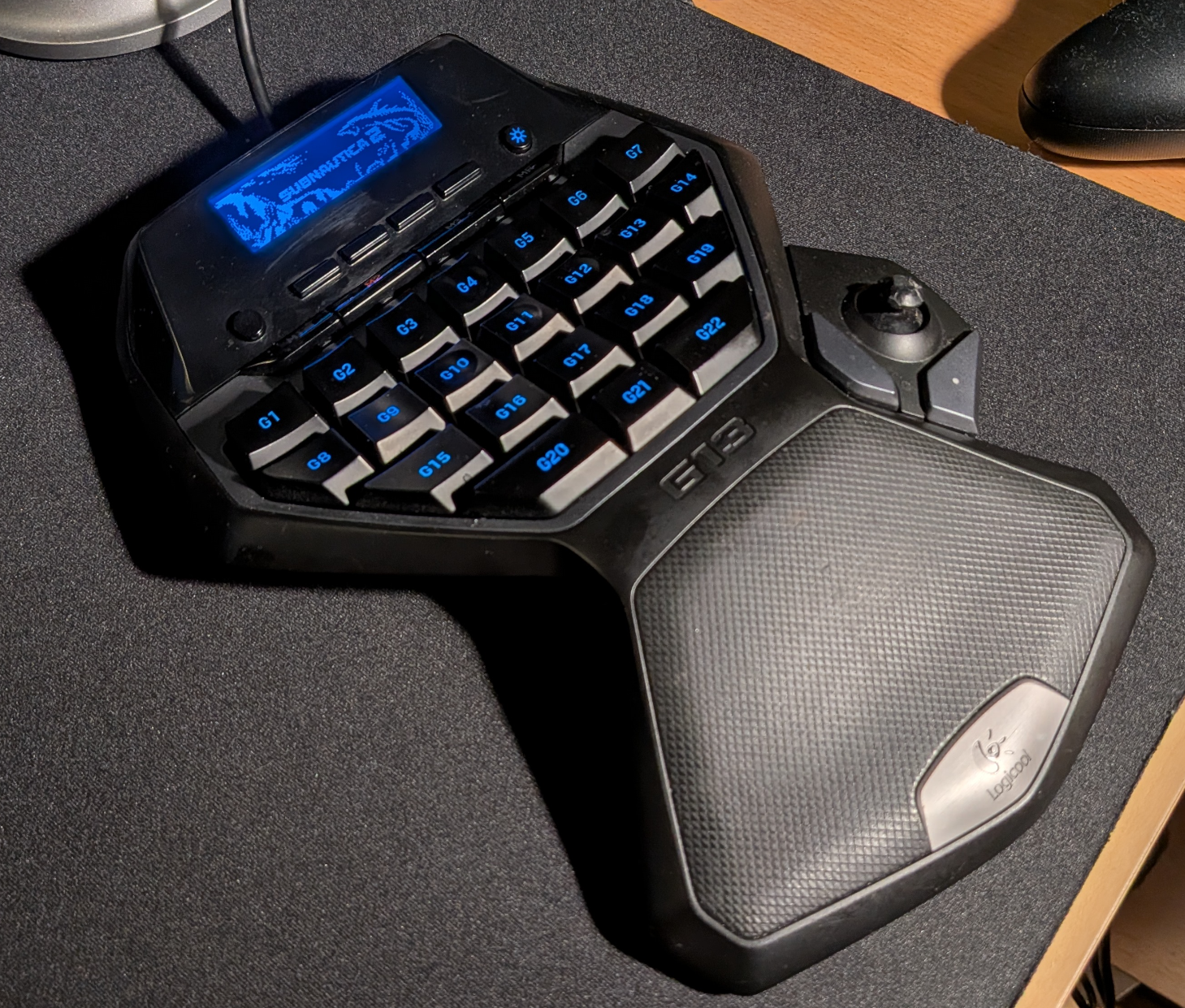 The G13 Advanced Gameboard in its natural, slightly dusty habitat. Still built like it costs more than it did.
A short history lesson
It’s a very old device by now. Logitech introduced it in December 2008 and it went on sale here in Japan on January 30, 2009 under the Logicool name. A lightly renamed G13r followed in 2013, identical apart from the model name stamped on the underside. Mine was bought just after the original came out, so it is well over 15 years old.
Software support ended much the same way. The G13 never made the jump to G HUB and stayed on the old Logitech Gaming Software instead. The last Windows release, LGS 9.04.49 from June 2022, still lists the G13 as a supported product, but it was a compatibility and security update rather than anything new. On the Mac side things stopped at 9.02.22, which never went past macOS Catalina. On Linux there was never anything official at all.
I switched to gaming on Linux early, and with no complete driver available on the systems I used, I had to stop using the G13 for many years. Until now. Thanks to some vibe coding I was able to resurrect it by writing a new driver and configuration app for Linux. I run Debian 12, so that is all I have tested it on, but it works perfectly well there. If you have one of these in a drawer somewhere and would like to use it for Linux gaming again, this is for you.
What it does
The driver handles hot-plugging and restores all settings and profiles between reboots and replugs without having to start the config app again. Boot the machine, leave the GUI closed, plug the G13 in, and it comes up with the correct profile, backlight and LCD image already loaded.
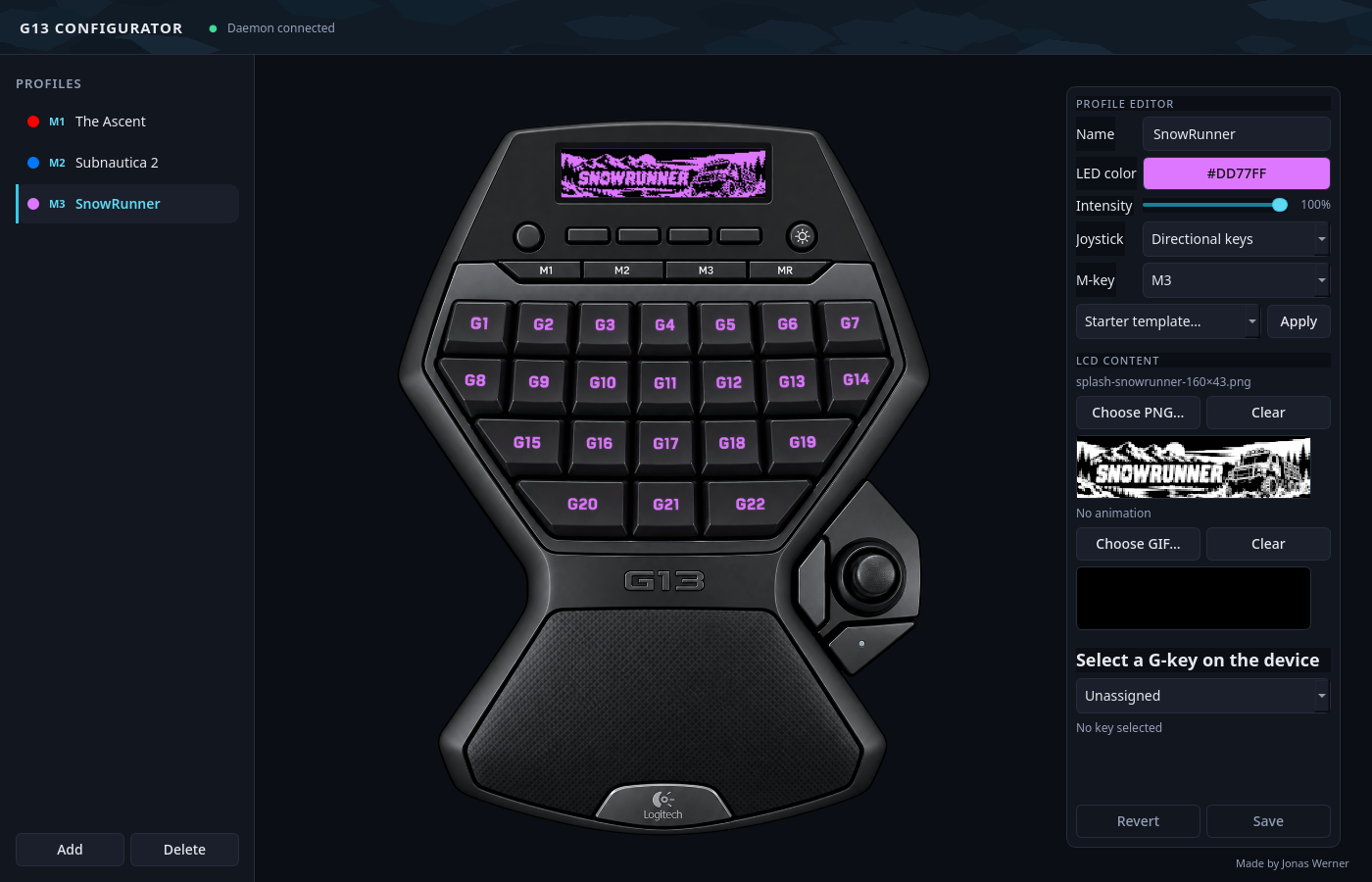 The configurator with a SnowRunner profile loaded. The gameboard image is a live representation of the actual device and key presses light up as you make them.
Profiles
Create and delete profiles and assign them to the M1-M3 keys for quick switching between games. You can create any number of profiles, and if the list gets too long to display it will give you a scrollbar. M-assigned profiles are kept at the top of the list, with the rest below.
Profiles are stored as plain TOML files under ~/.config/g13-linux/profiles/, so they are easy to read, easy to back up, and easy to hand to someone else. Copy the directory somewhere safe and your entire setup travels with you.
Key mapping and backlight
Every key can be mapped to whatever you want. Pick a G-key or a joystick control on the gameboard image and choose an assignment type:
- Single keystroke for one key
- Shortcut for a chord such as
Ctrl+E - Macro sequence for timed presses and releases
- Mouse button for left, right, middle, back or forward
- Unassigned if you want the key to do nothing
The joystick area exposes seven configurable controls: the four directions, the push-in click and the two buttons beside it. There is also a mouse-pointer mode if you would rather have the analog stick move the cursor than emit direction keys.
Each profile carries its own LED backlight color, hue and intensity, so you get a visual cue for which profile is currently active without looking at anything.
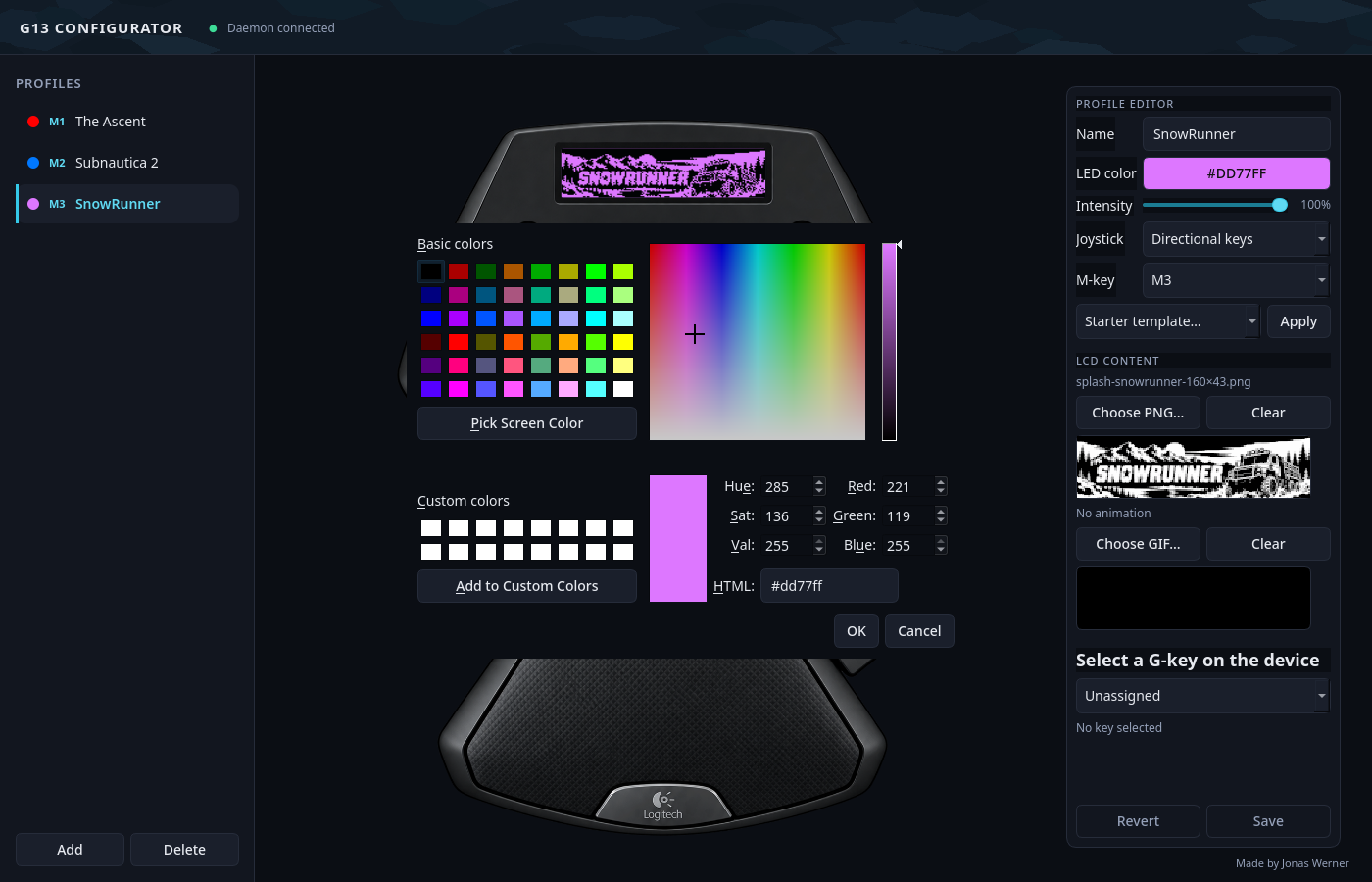 Per-profile backlight color and intensity.
The LCD
Each profile can use a custom monochrome image in 160x43 pixel format as well as an optional GIF animation. The splash image appears when the profile is activated, and the animation can play after it.
There’s also a clock and date app plus one for live CPU, memory, GPU and network statistics. Cycle through the views with the round application button at the top left, or jump straight to one with the L1-L4 keys:
- L1 profile splash image
- L2 profile GIF
- L3 clock, weekday and date
- L4 CPU, memory, GPU / VRAM, temperatures and network activity
GPU values show as -- where the installed driver doesn’t expose the metrics.
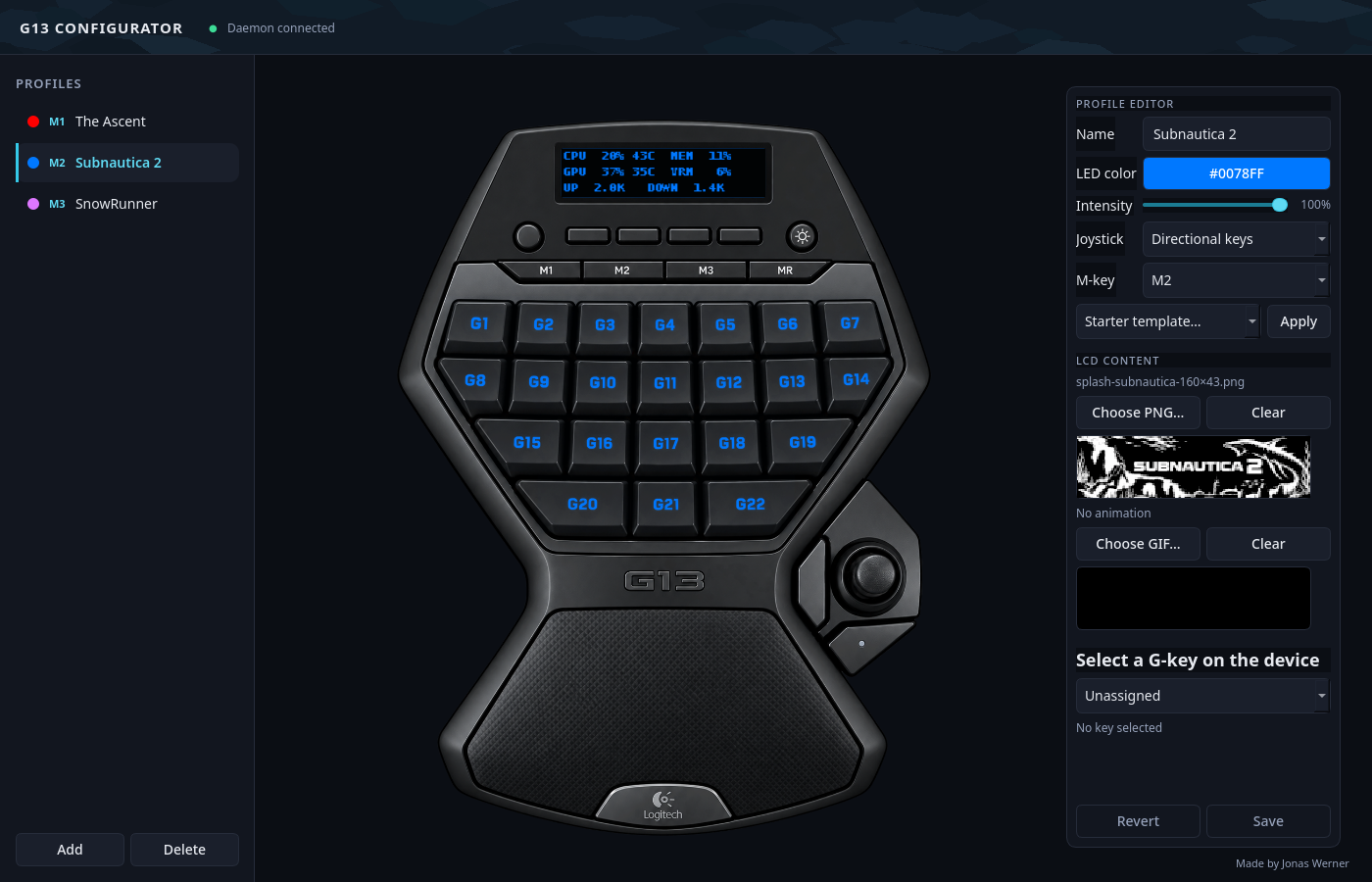 The Subnautica 2 profile with the live system-stat view selected on the LCD.
How it works under the hood
The design splits into one privileged setup step and two unprivileged processes:
g13downs the USB device, decodes the input reports, emits keyboard and mouse events through uinput, drives the backlight and LCD, and stores the profiles.g13-guiedits profiles and renders the live device state.- The two talk over newline-delimited JSON on a socket at
$XDG_RUNTIME_DIR/g13d.sock. - A udev rule grants the logged-in user access to the device, so the daemon itself never runs as root.
The G13 shows up as USB ID 046d:c21c. Input arrives as HID reports and gets translated into named controls. The RGB backlight uses feature report 0x0307, the M1/M2/M3/MR indicator LEDs use 0x0305, and LCD frames are packed into six controller pages and written as a 992-byte interrupt payload. Joystick directions use hysteresis so you don’t get a machine gun of transitions when the stick sits right on a threshold.
The daemon runs as a systemd user service, which is why everything comes back on its own after a reboot.
Installation
On Debian or Ubuntu, install the usual prerequisites first:
1
2
sudo apt update
sudo apt install python3 python3-venv python3-pip python3-dev build-essential libusb-1.0-0
Then grab the repository, create a virtual environment and run the installer:
1
2
3
4
5
6
7
git clone https://github.com/jonas-werner/g13-configurator.git
cd g13-configurator
python3 -m venv .venv
source .venv/bin/activate
python -m pip install --upgrade pip
pip install -e .
./install.sh
install.sh puts the udev rule in place and starts g13d as a user service. Unplug and reconnect the G13 afterwards if it was already connected. Check that the service is happy:
1
systemctl --user status g13d.service
Then start the configurator whenever you want to change something:
1
2
source .venv/bin/activate
g13-gui
Keep the project folder around after installing. The user service points at the virtual environment inside it.
Native kernel support finally arrived
There is an amusing twist to the timing of this project. In 2025, a patch was posted to extend the Linux hid-lg-g15 driver to cover the G13, some sixteen years after the hardware shipped. It was merged for Linux 6.19 in 2026.
Debian 12 still uses the much older 6.1 kernel, which is why this userspace driver is useful on my machine. The project also provides the profile editor, macro handling, presets and LCD applications around the low-level device support. On newer distributions, be aware that the in-kernel driver may already bind to the G13; the userspace daemon detaches the active kernel driver while it owns the device.
Get it
The code, a detailed setup guide and a developer-focused section are all on GitHub under the MIT license:
The developer section covers the module layout, daemon protocol, profile format and hardware diagnostics under tools/, in case you want to build on it or bend it to your own needs. New starter templates live in g13/presets.py.
This is community software and has nothing to do with Logitech. It’s simply what happens when a piece of hardware is too good to leave in a drawer.
Hope you’ll enjoy resurrecting your G13 as much as I did!